
# WattDee Platform Admin Manual (English) ## WattDee Platform Admin Manual (English) Source: https://admin-docs.wattdee.com/en/ ::: warning Internal Platform Documentation (UAT / Alpha) This site is strictly for **Platform Administrators (`Platform ADMIN`)** and **Central Operations (`Platform SERVICE`)**. Solar Developer and Customer Off-taker guides live separately at `https://docs.wattdee.com`. :::
WattDee LogoWattDee Platform Admin Manual

WattDee Platform Admin & Operations Manual

Central governance documentation for Advanced Grid platform operators: cross-developer portfolio oversight, tenant onboarding and meter quotas, global PEA tariffs and monthly Ft publishing, public holidays, bank accounts, WireGuard/IPsec/OpenVPN tunnels, HES meter identity overrides, database partition health, and audit logging.
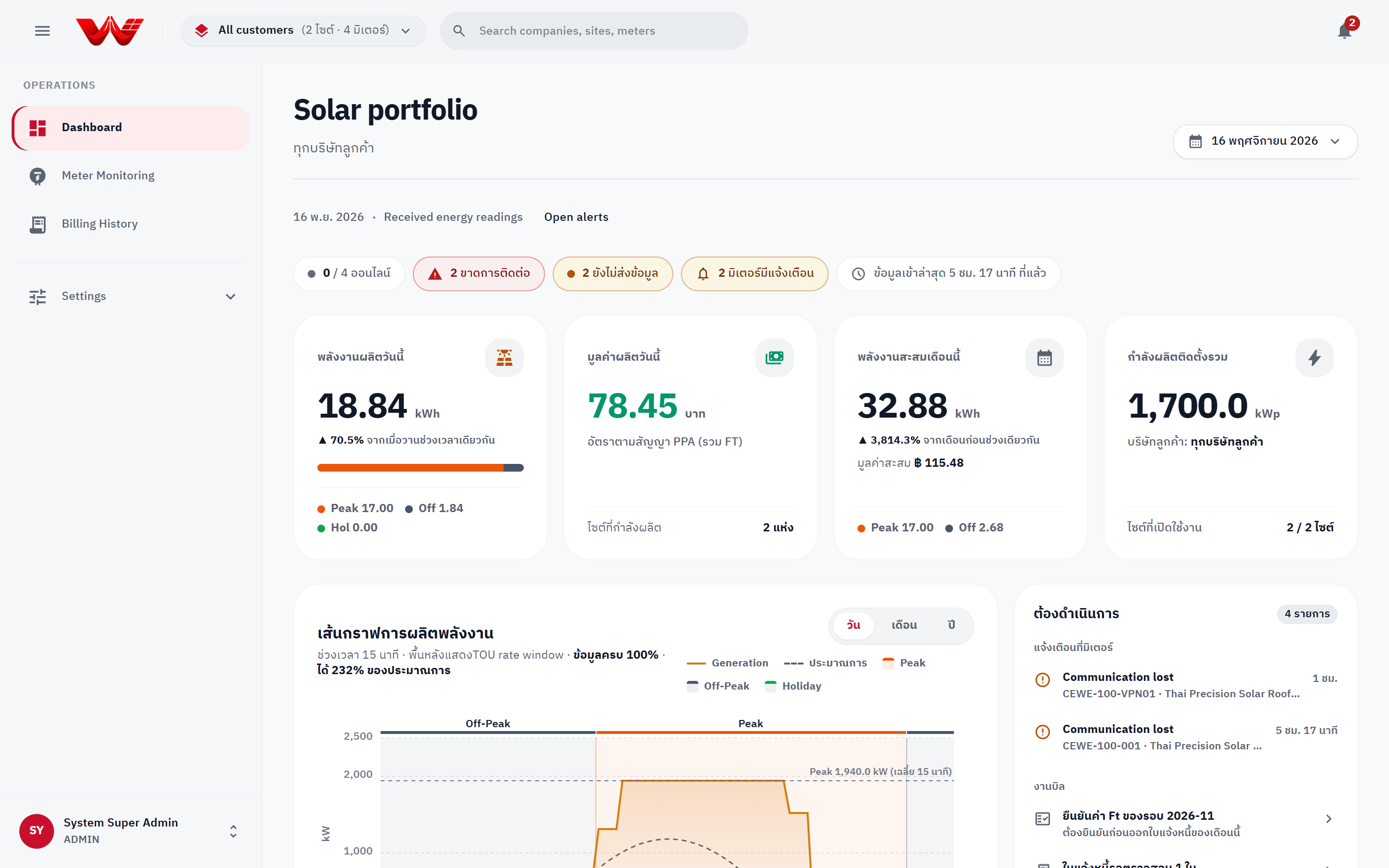
WattDee Platform Admin Portfolio Dashboard across all developers
## Manual Directory (Chapters 01 to 05)
Chapter 01 Platform Roles & Governance SUPER_ADMIN organization architecture, all 33 Platform ADMIN capabilities vs. 9 Platform SERVICE capabilities, and cross-tenant auditing. Chapter 02 Developer & Tenant Onboarding All-developers portfolio switcher, Companies directory, creating developer companies, meter limits, first admin provisioning, and cross-company transfers. Chapter 03 Global Tariffs, Ft & Reference Data Global PEA TOU tariffs, cut-off locks, monthly Ft verification (`ftrate.write`), seller bank accounts, and public holiday calendars. Chapter 04 VPN Profiles, HES & Meter Identity WireGuard (`dial`/`listen`), IPsec, OpenVPN configuration, meter destination allowlist policies, and US-1.19 serial overrides/swap confirmations. Chapter 05 Database Health, Audit Log & Support Ops PostgreSQL monthly partitions, HES sync lag, system-wide Audit Log exports, private signature storage migration, and Admin MCP usage.
::: info Admin AI Index & MCP Server Plain-text documentation index at /llms.txt, full English bundle at /en/llms-full.txt, remote HTTP MCP at https://admin-docs.wattdee.com/api/mcp, and local stdio MCP via `bun run docs:admin:mcp`. Thai version: [คู่มือผู้ดูแลแพลตฟอร์ม (`/th/`)](/th/). :::
--- ## Platform Roles & Governance Source: https://admin-docs.wattdee.com/en/01-platform-roles-and-governance ::: warning Internal Platform Documentation This guide covers privileges and governance procedures restricted to the Platform Owner organization (`SUPER_ADMIN` / `org_avg_super`). ::: # Platform Roles & Governance **Who is this for:** Platform Administrator (Platform ADMIN) Central Operations Team (Platform SERVICE) --- ## 1. Platform Owner Authorization Tier (`SUPER_ADMIN`) Accounts belonging to the platform owner organization (**Advanced Grid Co., Ltd.**, ID `org_avg_super`, `organizations.type = 'SUPER_ADMIN'`) have platform-wide tenant visibility (`tierOf(authCtx) === 'platform'`). Two assignable roles exist at the platform tier (`ROLES_ASSIGNABLE.platform`): | Role Code | UI Label | Capabilities | Responsibilities & Restrictions | | :--- | :--- | :---: | :--- | | **`ADMIN`** | **Platform administrator** | **33 / 33** | Holds every `CAPABILITIES` entry across every organization, site, meter, invoice, and shared reference table (`org.admin`, `ftrate.write`, `holiday.write`, `bank.write`, `vpn.manage`, `meter.identity.override`, `policy.read`, `invoice.*`, `telemetry.*`). | | **`SERVICE`** | **Central operations team** | **9 / 33** | Monitors meters and HES communications across **all sites**: view organizations, register/edit/replace meters (`meter.write`), send connection tests and read-now commands (`meter.command`), inspect meter IP/port/SIM (`meter.network.read`), repair 15-minute telemetry (`telemetry.sync`), view telemetry quality reasons (`telemetry.quality.read`), manage alarms (`alert.manage`), view parallel billing comparison (`invoice.compare`), and read reference rates/holidays (`reference.read`). *(Cannot manage organizations/users, edit tariffs/Ft/banks/holidays, manage VPNs, override meter serials, or issue/approve invoices.)* | ::: warning Six Platform-Admin-Only Governance Capabilities Although Solar Developer `ADMIN` accounts manage their own customers, sites, meters, and billing workflows, **6 cross-tenant capabilities** remain strictly reserved for `Platform ADMIN`: 1. **`org.admin`**: Creating/deleting developer organizations, changing organization types, adjusting `Active meter limit` quotas, moving users/sites across organizations, and inspecting the system-wide **Audit log**. 2. **`ftrate.write`**: Publishing and updating monthly **Ft rates**. 3. **`holiday.write`**: Seeding and editing the shared **Public holiday calendar**. 4. **`bank.write`**: Managing **Payment bank accounts** (platform defaults and per-developer overrides). 5. **`vpn.manage`**: Creating, editing, enabling/disabling WireGuard, IPsec, and OpenVPN **VPN profiles** and assigning meters. 6. **`meter.identity.override`**: Overriding a pending/duplicate meter **Serial number** or confirming an HES-detected meter **Swap** with a mandatory audit reason (and overriding locked customer countersignatures when authorized). ::: --- ## 2. Auditing Live Permissions (`GET /api/permissions`) 1. Open **Settings** and select any organization (Platform administration, any Solar Developer, or any Customer company). 2. Click the **People & access** tab and select **Role permissions**. 3. The portal renders a **read-only** table served directly by `GET /api/permissions` from `backend-api/src/auth/policy.ts`, guaranteeing exact alignment between the UI and API route enforcement across all 3 tiers (`platform`, `developer`, `customer`). ![Read-only Role permissions matrix in Settings](/screenshots/en/27-settings-permission-matrix.png) *Figure 1: Live server-backed Role permissions matrix in Settings.* --- ## Next Steps - [Chapter 02: Developer & Tenant Onboarding](./02-developer-and-tenant-onboarding) - [Chapter 03: Global Tariffs, Ft & Reference Data](./03-global-tariffs-ft-and-reference-data) --- ## Developer & Tenant Onboarding Source: https://admin-docs.wattdee.com/en/02-developer-and-tenant-onboarding # Developer & Tenant Onboarding **Who is this for:** Platform Administrator (Platform ADMIN) Central Operations Team (Platform SERVICE, portfolio view only) --- ## 1. Cross-Developer Portfolio Dashboard After signing in with a platform account, the **Dashboard** gives a unified real-time overview across every developer tenant and customer site: 1. **Top Portfolio Switcher:** Select **All developers** to monitor the entire platform, or filter to a single Solar Developer company. 2. **Health Strip:** Monitor live counts for `online`, `offline`, `not reporting`, `meters with alarms`, and HES projection lag. Click any chip to jump directly to the filtered meter list. 3. **4 Summary KPI Cards:** **Today Energy (kWh)**, **Today Value (THB)** *(intentionally renders `-` when aggregating sites on differing tariffs)*, **Month Cumulative Energy (kWh)**, and **Total Installed Capacity (kWp)**. 4. **Action Queue:** Highlights urgent cross-tenant tasks on the right rail, including **Verify Ft rate for YYYY-MM** (allowing immediate one-click Ft confirmation directly from the dashboard), active alarms, invoices awaiting action, and late telemetry intervals. 5. **Generation Curves & Site List:** Toggle **Day / Month / Year**, compare against clear-sky expected curves, expand **TOU Day/Month Summary**, or toggle **Table / Cards**. ![Platform Admin Portfolio Dashboard Overview](/screenshots/en/02-dashboard-overview.png) *Figure 1: Platform Admin Portfolio Dashboard across all developers with Health Strip and Action Queue.* --- ## 2. Companies Directory & Creating Solar Developers Only **Platform administrators (`org.admin`)** can create solar developer companies, delete organizations, change organization types, or adjust active meter limits. ### Browsing the Companies Directory 1. Click **Settings** > **Companies** in the left navigation sidebar. 2. Use **Search companies** to filter by Thai/English name or ID. 3. Organizations are grouped under **Platform administration**, **Developer companies**, and **Unassigned customers**. ![Settings Companies Directory](/screenshots/en/20-settings-companies-directory.png) *Figure 2: Companies directory grouped by tier, with the Add developer company action.* ### Creating a New Solar Developer Company 1. On **Settings > Companies**, click **Add developer company**. 2. Enter **Company name (Thai)** and **Company name (English)** *(required)*. 3. Keep **Organization type** set to **Solar developer**. 4. Enter tax and invoicing details: **Tax ID (13 digits)**, **Phone (shown on invoices)**, **Billing email**, and **Head office address (shown on tax invoices)**. 5. Optionally enter **Authorized signatory name**, **Signatory title**, and upload the **Authorized signature (transparent PNG/JPG/WebP)** and **Company logo**. 6. Click **Add company** to save. ![Create Developer Company Modal](/screenshots/en/21-settings-create-developer-modal.png) *Figure 3: Add company modal for creating a new solar developer tenant.* --- ## 3. Setting Active Meter Limits & Provisioning the First Company Admin 1. Open the newly created developer company, go to **Company information**, and click **Edit company profile**. 2. Set **Active meter limit** (default `100,000` active meters per developer; inactive meters are excluded) and click **Save changes**. 3. Switch to the **People & access** tab and click **Add user**. 4. Provision the tenant's first **Company administrator (`Developer ADMIN`)** with either a manual password or an auto-generated temporary password (shown once) so the developer can begin onboarding their off-takers, sites, and staff. ![Company People and Roles Management](/screenshots/en/26-settings-company-people-roles.png) *Figure 4: People & access screen used to create the developer's first administrator and verify reachable sites.* ::: tip Cross-Tenant Transfers & Deleting a Company - **Reassigning users or sites:** Only a **Platform administrator** can move an existing user between organizations or transfer an existing site to a different customer company. - **Deleting a company:** Clicking **Delete company** removes the company from active management while preserving previously issued invoices intact for tax audit compliance. ::: --- ## Next Steps - [Chapter 03: Global Tariffs, Ft Rates, Bank Accounts & Holidays](./03-global-tariffs-ft-and-reference-data) - [Chapter 04: VPN Profiles, HES & Meter Identity](./04-vpn-hes-and-meter-identity) --- ## Global Tariffs, Ft & Reference Data Source: https://admin-docs.wattdee.com/en/03-global-tariffs-ft-and-reference-data # Global Tariffs, Ft Rates, Bank Accounts & Holidays **Who is this for:** Platform Administrator (Platform ADMIN) --- ## 1. Tariffs & Billing Precision Rules (`Settings > Billing & tariffs`) Only **Platform administrators** can publish or edit system-wide billing reference data (`ftrate.write`, `bank.write`, `holiday.write`). ### Tab 1: Tariffs (`Tariff structures`) 1. Review the **Current billing rules** strip at the top (billing cut-off day, decimal places for energy/rate/amount, and power factor penalty threshold/rate). 2. Click **Add tariff** or **Edit** on an existing schedule (such as PEA TOU). 3. Configure **Tariff category**, **Start date / End date**, **Peak / Off-peak / Holiday rates**, **Service charge**, and **Bill calculation type** (`With Ft` or `Without Ft`). 4. Expand **Advanced billing rules** to set contract defaults: - **Billing cut-off day (`1–28`)** *(e.g. `25` covers the 25th to the 24th of the following month)* - **Payment due (`0–120` days after cut-off)** - **Decimal places**: energy (`0–4`), rate (`2–6`), amount (`0–4`) - **Power factor penalty (PEA)**: enable/disable, **Minimum PF threshold** (`0.85`), and **Penalty rate** (`56.07` THB/kVAR) 5. Click **Save changes**, or click **CSV** to export the tariff schedule table. ::: warning Billing Cut-Off Day Locks After First Invoice (`409`) Once a site has any non-rejected invoice, its **Billing cut-off day** locks (`409`) so historical billing periods never overlap or leave gaps. Non-cut-off fields still update, and the portal reports which sites kept their original cut-off day. ::: ### Tab 2: Monthly Ft Rates (`ftrate.write`) 1. Switch to **Monthly Ft rates** (or click **Verify Ft rate** directly from the `/billing` warning banner or Dashboard Action Queue). 2. Click **Publish Ft rate** (or **Edit** an unlocked month row). 3. Enter **Billing month** in `YYYY-MM` format (e.g., `2026-10`). 4. Enter the official ERC **Ft rate (THB/kWh)** between `-2.0000` and `10.0000` (e.g., `0.3972`). 5. Click **Save Ft rate**. ![Tariffs and Monthly Ft Rates Screen](/screenshots/en/29-settings-tariff-ft-rates.png) *Figure 1: Billing & tariffs screen showing Tariffs and Monthly Ft rates management tabs.* ::: danger Mandatory Ft Enforcement (`422`) & Month Lock - Real invoice previews and generation strictly refuse (`422`) any billing month without a saved Ft rate. *(Only the exploratory **Compare PPA rate with utility** modal `/api/billing/rate-comparison` falls back to `0.3972` THB/kWh with a visible yellow fallback warning banner.)* - Once at least one invoice for `YYYY-MM` enters `CHECKED` or `APPROVED`, that month's Ft rate is **locked** against modification. ::: --- ## 2. Payment Bank Accounts (`Settings > Bank accounts`) 1. Open **Bank accounts** under Settings. 2. Click **Add bank account** (or **Edit** an existing account). 3. Enter **Bank name**, **Branch**, and select **Seller (company receiving payments)**: - **Platform (shared by all sellers)**: Default bank account printed on invoices when no seller-specific account is configured. - **Specific Solar developer**: Prints that developer's dedicated collection bank account on their invoices and PDF exports. 4. Fill in **Account name**, **Account number**, and **PromptPay / QR number**, then click **Add account / Save changes**. --- ## 3. Public Holiday Calendar (`Settings > Holidays`) Generation recorded on weekends and dates listed in this calendar (evaluated on `Asia/Bangkok` calendar dates) automatically classifies as **Rate C (Holiday Off-Peak)** for all 24 hours. 1. Open **Holidays** under Settings. 2. **Annual preset load:** Select `2025`, `2026`, or `2027` under **Load annual public holidays (PEA / MEA calendar)** and click **Load annual holidays**. 3. **Single holiday entry:** Select **Holiday date (`YYYY-MM-DD`)**, enter an optional **Holiday name**, and click **Add holiday**. ![Bank Accounts, Holidays, Database Health, and Audit Log](/screenshots/en/30-settings-bank-holiday-system-audit.png) *Figure 2: Shared reference and governance workspace (Bank accounts, Holidays, Database health, and Audit log).* --- ## Next Steps - [Chapter 04: VPN Profiles, HES & Meter Identity](./04-vpn-hes-and-meter-identity) - [Chapter 05: Database Health, Audit Log & Support Ops](./05-database-audit-and-platform-ops) --- ## VPN Profiles, HES & Meter Identity Source: https://admin-docs.wattdee.com/en/04-vpn-hes-and-meter-identity # VPN Profiles, HES Connectivity & Meter Identity **Who is this for:** Platform Administrator (Platform ADMIN) Central Operations Team (Platform SERVICE, fleet & HES probes) --- ## 1. Managing VPN Profiles (`vpn.manage` - Platform ADMIN Only) WattDee supports shared **WireGuard**, **IPsec**, and **OpenVPN** profiles scoped to each solar developer organization so meters across all of that developer's sites can share managed tunnels. 1. Open **Settings** > choose the target **Solar developer** > click the **VPN profiles** tab. 2. Click **Add VPN profile** (or select a profile and click **Edit settings**). 3. *(Optional)* For **WireGuard** or **OpenVPN**, expand **Import configuration**, paste the router/client config text, and click **Review imported settings** to prefill fields. 4. Enter **Connection details**: - **Connection name** and **Protocol** (`WireGuard`, `IPsec`, `OpenVPN`). - **For WireGuard (Connection mode):** - **We dial the site (`dial`):** Use when the site gateway has a static public IPv4. Enter **Peer IPv4 address** and **Peer port** (default `51820`). - **The site dials us (`listen`):** Use when the site connects over **4G / CGNAT** without a public IP. Enter **Server UDP port** (`1024–65535`, default `51821`) and **open that UDP port in the server firewall** (no peer IP required). - **Allowed meter networks (CIDR):** e.g., `10.10.0.0/24` *(every meter bound to this profile must have an IP within these CIDR ranges)*. - Fill protocol credentials (WireGuard local tunnel CIDR, peer public key, keepalive; IPsec IKEv1/IKEv2, PSK or PEM certs; OpenVPN UDP/TCP, server cert name, PEM bundle, optional TLS Crypt). Check **Replace credentials** when rotating keys on an existing profile. 5. Click **Save VPN connection** and verify the status settles on **Tunnel established** (or **Runner ready**). ![Developer VPN Profiles Configuration](/screenshots/en/25-settings-company-vpn.png) *Figure 1: VPN profiles workspace displaying active tunnel status and protocol settings.* ### Assigning a VPN Profile to a Site Meter 1. Open the target site > **Connectivity** tab. 2. Select the VPN profile, choose the meter under **HES meter**, and click **Assign meter**. 3. Click **Unassign** only when detaching a meter from the tunnel *(unassigning immediately halts HES polling for that meter)*. --- ## 2. Meter Destination Allowlist Policy Outbound TCP probes (`Test connection`, `Read now`) and scheduled `.NET HES` polling support explicit IPv4 CIDR + TCP port allowlists before dialing field endpoints: 1. Inventory every active and inactive meter destination from `backend-api/`: ```bash bun run db:meter-destinations ``` *(Read-only report listing developer org, public meter ID, HES meter UUID, active state, and target `host:port`. Handle output as internal operational data.)* 2. Configure matching environment variables: - `METER_DESTINATION_POLICIES`: JSON map keyed by `developerOrgId` -> `[{ cidr, ports }]` for `hes-command-worker`. - `HES_METER_DESTINATION_POLICIES`: JSON map keyed by **HES meter UUID** -> `[{ cidr, ports }]` for `hes-service`. 3. Verify all live endpoints (including VPN subnets) in observation mode before switching on `METER_DESTINATION_MODE=enforce` and `HES_METER_DESTINATION_MODE=enforce`. *(Enforcement mode refuses loopback, link-local, multicast, unspecified, and IPv6 addresses, and verifies all DNS answers before pinning TCP connections.)* --- ## 3. Meter Identity Override & Swap Confirmation (`meter.identity.override`) Under **US-1.19**, HES discovers each meter's serial number on its first successful read and blocks billing whenever an observed serial disagrees or collides with another meter. Only **Platform ADMIN** holds `meter.identity.override`: 1. Open the site under **Settings > Meters** (or drill in from **Meter Monitoring**). 2. Inspect pending or blocked states (`Waiting for HES to read the serial`, `Duplicate serial`, or `Suspected meter swap` / `Identity check failed`). 3. Verify the physical nameplate with the developer team, then run **Correct serial** or **Confirm swap**. 4. Provide an explicit **Audit reason** *(minimum **5 characters**)*, recorded permanently in the System Audit Log. ![Site Meter Configuration and Add Meter Form](/screenshots/en/28-settings-site-meter-setup.png) *Figure 2: Site meter list used to verify HES identity states, CT/VT configuration, and perform serial overrides.* --- ## 4. Cross-Tenant Fleet Monitoring & HES Diagnostics (`Platform ADMIN` & `SERVICE`) Both `Platform ADMIN` and `Platform SERVICE` can monitor and probe meters across every developer from `/meter`: - **View as > Developers:** Aggregate online rates per Solar Developer to detect regional or VPN gateway incidents quickly. - **Meter Diagnostics (`/meter` side panel):** Run **Test connection** or **Read now** to isolate `config_error` (missing LLS secret on HES host), `auth_failed`, `operation was canceled` (`HDLC` vs `WRAPPER` mismatch), or `connect_failed` / `poll_timeout` (verify Droplet-to-container VPN routing and firewall rules). ![Fleet Meter Monitoring Board](/screenshots/en/06-meter-monitoring-fleet.png) *Figure 3: Cross-tenant Meter Monitoring fleet board sorted worst-first.* ![Meter Detail and Diagnostics Panel](/screenshots/en/09-meter-detail-status.png) *Figure 4: Meter detail and HES diagnostics panel.* --- ## Next Steps - [Chapter 05: Database Health, Audit Log & Support Ops](./05-database-audit-and-platform-ops) --- ## Database Health, Audit Log & Support Ops Source: https://admin-docs.wattdee.com/en/05-database-audit-and-platform-ops # Database Health, Audit Log & Platform Operations **Who is this for:** Platform Administrator (Platform ADMIN) Central Operations Team (Platform SERVICE, Database & system tab) --- ## 1. Database & System Health (`Settings > Database & system`) *(Accessible to `Platform ADMIN`, `Platform SERVICE`, and roles holding `meter.network.read`.)* 1. Open **Settings** > **Database & system**. 2. Inspect infrastructure metrics: - **Database size** and PostgreSQL server version. - **Monthly partitions** (`load_profile_15min` partitions): check `Ready` vs. `Partition needs extension`, along with per-partition row counts and disk sizes. *(Extend upcoming partitions proactively via `bun run --cwd backend-api db:partitions` before a new year begins.)* - **Meter data sync (HES)**: projection lag in seconds and count of active meters waiting over 1 hour. - **System record counts**: total Projects, Meters, Invoices, and Audit events. 3. Click **Refresh status** to pull live metrics (or query `/api/health/ready` via operations monitoring). --- ## 2. System Audit Log (`Settings > Audit log`) *(Restricted exclusively to **Platform ADMIN** holding `org.admin`.)* 1. Open **Audit log** under Settings. 2. Filter platform-wide activity by: - **Search audit events** (action, entity ID, or summary) - **Filter by actor email** - **Category:** `All categories`, `Meter data`, `Invoices`, `PPA contracts`, `Meters` - **From** and **To** date bounds 3. Click **Export current page** to download the visible CSV slice (use filters and pagination for historical ranges). ![Bank Accounts, Holidays, Database Health, and Audit Log](/screenshots/en/30-settings-bank-holiday-system-audit.png) *Figure 1: Platform governance views for Database & system health and Audit log exports.* --- ## 3. Private Signature Storage Migration Authorized company signatures and customer countersignatures are stored privately under `private/signatures/` and served strictly via authenticated endpoints (`Cache-Control: private, no-store`). When upgrading legacy tenants with keys still under `public/signatures/`, run from `backend-api/` against the target environment after taking backups: 1. **Dry-run inventory (read-only):** ```bash bun run db:migrate:signatures ``` 2. **Copy legacy signature objects to private storage and update references:** ```bash bun run db:migrate:signatures --apply ``` 3. **Verify signature previews and historical PDF/Excel/Word exports** across migrated organizations and invoices. 4. **Purge legacy public objects** *(only after verifying step 3)*: ```bash bun run db:migrate:signatures --purge ``` --- ## 4. Platform Support Escalations - **Replacing locked customer countersignatures (`409 Conflict`):** Once a customer or developer saves a countersigned PDF or signature image, updates return `409 Conflict` to preserve immutability. Only **Platform ADMIN** may arrange a supervised replacement after verifying approval from both counterparties. - **Recovering locked-out Company Administrators:** When all `Developer ADMIN` or `Customer ADMIN` accounts of an organization are unavailable, reset the administrator password in that organization's **People & access** tab. - **Meter quota increases & urgent early billing (`invoice.issueEarly`):** Review active meter utilization and cycle status before raising an organization's `Active meter limit` or issuing an early bill. ![WattDee Sign-In Page](/screenshots/en/01-login-page.png) *Figure 2: WattDee sign-in screen used by platform staff before switching across developer portfolios.* --- ## 5. Connecting AI Assistants & MCP to the Platform Admin Manual The Platform Admin Manual is deployed independently at **`https://admin-docs.wattdee.com`** (isolated from the public Solar Developer manual at `docs.wattdee.com`): | Interface | URL / Command | Notes | | :--- | :--- | :--- | | **Admin `/llms.txt`** | `https://admin-docs.wattdee.com/llms.txt` | Structured Thai/English index of all Platform Admin guides | | **Admin `/llms-full.txt`** | `https://admin-docs.wattdee.com/llms-full.txt` | Full Platform Admin Markdown bundle (`/th/llms-full.txt`, `/en/llms-full.txt` also published) | | **Admin Remote HTTP MCP** | `https://admin-docs.wattdee.com/api/mcp` | Streamable HTTP JSON-RPC 2.0 endpoint exposing `search_wattdee_admin_manual`, `get_wattdee_admin_guide`, and `get_role_capabilities` (including `platform` tier) | | **Admin Local Stdio MCP** | `bun run docs:admin:mcp` | Local stdio MCP server for internal platform operators | ```json { "mcpServers": { "wattdee-admin-docs": { "command": "bun", "args": ["run", "docs:admin:mcp"], "cwd": "/path/to/AMR" } } } ```